
An automatic email should not announce that a repair is complete merely because someone edited an internal record. In this tutorial, a reviewer approves a specific status message before the application attempts to send it. You will test the recipient, message and failure path using an account you control.
Your result: a small, checked notification flow with explicit approval and an observable send outcome. This is a documentation-based design exercise; we have not connected an account or sent a message through Base44.
Before you start
Use a separate sample app and a recipient account that has actually registered for that app. Base44’s current Workflows feature requires Builder or higher. Check the current plan, credit balance and feature in your account before purchasing or creating a workflow.
Older apps may still have Automations instead of Workflows. The official workflow guide describes that transition and the current workflow editor. Inspect which version your app uses rather than search indefinitely for a missing menu.
Keep external sending disabled while you first review the data model and message preview. Do not use a tenant or customer email address for the test.
1. Define the message record
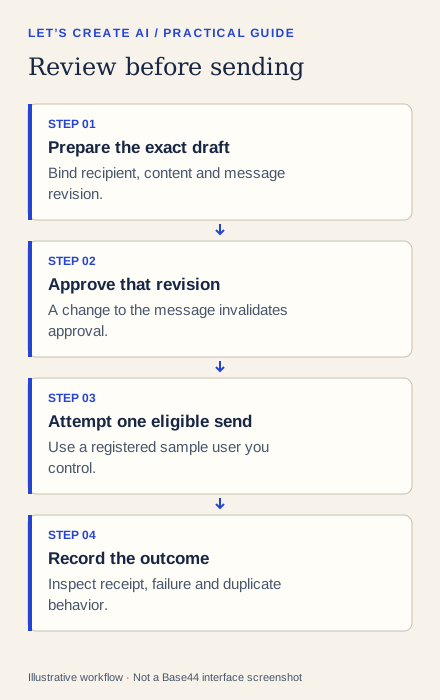
Keep the approved text and its recipient bound to the same review decision. A later edit to the text should invalidate that approval. Use these proposed fields:
| Field | Why it exists |
|---|---|
| request_reference | Associates the message with the right sample request |
| recipient_user | Identifies the intended registered app user |
| draft_subject and draft_body | The exact content to review |
| message_revision | Distinguishes an edited draft from the approved version |
| approved_revision | Identifies which text the reviewer approved |
| send_state | Separates Draft, Approved, Sent and Failed |
| send_error | Helps the operator investigate failure |
Figure 2. A proposed message-state model. Field names and implementation must be checked in the generated app.
Use a factual sample message: “Your request TEST-R001 has been reviewed. The team will provide the next update through the agreed contact route.” Do not invent an appointment, completion claim or response-time promise.
2. Ask for a reviewed sending workflow
Design a status-email workflow for a sample app.
The recipient is a registered sample user I control.

A reviewer must approve the exact recipient, subject, body and
message revision. Editing any of them invalidates approval.
Attempt sending only for the approved current revision.
Do not resend a revision already recorded as sent.
Record success and a useful failure outcome separately.
Show how retries and duplicate triggers are handled.

First create the design and a message preview without sending.
Do not enable external sending until I inspect it.
Explain any feature you cannot enforce with the generated setup.
Open Dashboard → Workflows when the feature is available, inspect the trigger and every step, and compare them with the design. A condition based only on “record updated” can be too broad. Editing an internal note should not trigger another email.
3. Check recipient eligibility and the delivery route
Base44’s email guide distinguishes registered app users from other recipients. The workflow’s built-in Send email step is documented for people registered with the app. Other delivery cases have additional requirements or need a different implementation.
Use the registered sample recipient for this tutorial. Check the actual address and preview before enabling a test send. Also confirm the sender and how replies will be handled; do not assume a generic sending address is a monitored support inbox.
Each send can use integration credits. A repeated trigger can therefore create both unwanted messages and additional usage.
4. Run the smallest meaningful test
After inspecting the setup, authorize a test in your own account. Use a subject such as “Prototype test TEST-R001 — no action required.” Confirm that the received content matches the approved revision and goes only to the controlled recipient.
Record the actual send result. A workflow that finishes without an exception is different from proof that the recipient received the message. Check the app logs when the send is blocked or fails.
Then test the boundaries:
- Save an unapproved draft: no message should be sent.
- Edit an approved draft: it must return for review.
- Approve and send one revision: inspect the received copy.
- Make an unrelated record change: it must not resend that revision.
- Investigate the retry design: identify how duplicate processing is prevented or handled.
Do not call the system “exactly once” based on a checkbox or a last-sent flag. Concurrency and interrupted operations need a verified mechanism. If the generated implementation cannot control duplicates reliably, retain a manual send path until a technical reviewer resolves it.
Troubleshooting
- No email arrived: check the recipient’s app registration, workflow outcome, logs, credit balance and spam folder.
- The wrong text was sent: inspect how the approved revision is stored and whether edits invalidate it.
- A message was duplicated: stop automatic sending and examine the trigger, retry and concurrent-run behavior before re-enabling it.
- A response never reached the team: verify the reply route separately; delivery does not establish a working reply inbox.
Use real recipients only after the owner of the communication process has reviewed the content, access and recovery path. Keep the first release limited to one approved message type.