
You have a main website and a Base44 app. You want the app at an address such as portal.example.com while the existing website continues to serve its visitors. The practical choice is a dedicated subdomain whose DNS changes you can inspect independently.
This tutorial gives you a connection and verification procedure. example.com is a placeholder: use a domain you control, and obtain the exact record values from your own Base44 dashboard. We have not changed a domain or tested a live Base44 account for this article.
Before you start
Confirm that the app works at its current Base44 address and that its visibility settings match the intended audience. A custom domain does not make a public app private.
Base44’s domain overview currently lists custom domains on Starter and higher. Verify availability in your account. You also need authority to edit the domain’s DNS, or a responsible administrator who can apply the reviewed change.
Record the current DNS entries for the hostname you intend to use. If it already points to an active service, select another name or plan that service’s migration explicitly. Do not repoint it casually.
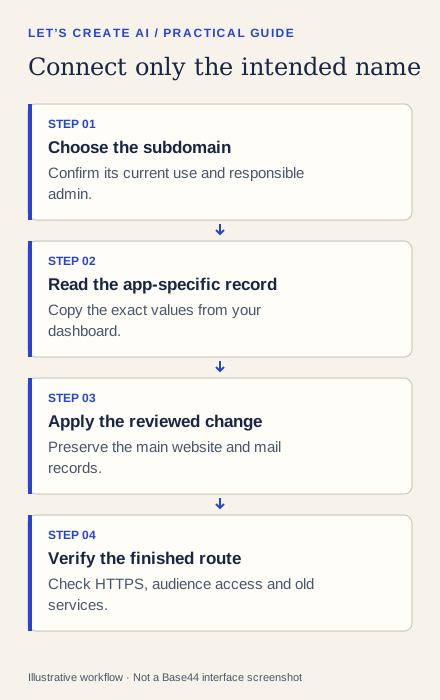
1. Choose the hostname and its owner
Write down the exact requested address, app, workspace and person responsible for DNS. Check whether DNS is managed at the domain registrar or another provider. Editing records in the wrong control panel has no useful effect even if the form accepts them.
For a portal alongside a marketing website, the proposed mapping might look like this:
| Hostname | Intended destination | Change in this exercise |
|---|---|---|
| example.com | Existing marketing site | None |
| www.example.com | Existing marketing-site behavior | None |
| portal.example.com | Your chosen Base44 app | Reviewed app-specific record only |
| Mail records | Existing email service | None |
Figure 2. A sample change-boundary table. It is not a DNS configuration to copy.
2. Obtain the exact record from Base44
Open your app’s Dashboard → Domains and follow the existing-domain connection flow for the chosen subdomain. Inspect which app and workspace you are connecting. If the flow offers automatic DNS setup, read its proposed changes before approving anything.
For this exercise, use the manual path when you need to limit the change to the reviewed subdomain. Base44’s external-domain guide describes the setup paths and account-specific DNS values. Record the type, hostname and target exactly as shown.
Do not copy an IP address from a blog or from another person’s app. The correct values are the ones your account currently provides.
3. Apply only the intended DNS change
At the authoritative DNS provider, compare the existing hostname with the proposed record. Check whether that provider expects a short host such as portal or a full hostname. Avoid accidentally creating portal.example.com.example.com.
Use Base44’s current guidance about proxying and conflicting records for the hostname being connected. If an entry conflicts, identify its purpose before changing it. Do not remove unrelated records across the domain to troubleshoot one subdomain.
If a domain administrator is making the change, give them the exact hostname and values, the intended app and the boundary table above. Ask them to confirm which records were actually altered.
4. Verify both the new route and the retained services
Return to the app’s Domains page and check verification status. Then open the intended HTTPS URL in a fresh browser session. Inspect the certificate, the app identity and a simple non-sensitive interaction.
Check the main website and its www behavior as well. If email records were not meant to change, confirm they remain as recorded. DNS propagation and certificate issuance may take time; a pending status is not itself evidence that you should keep making new changes.
Before sharing the address, test the intended audience boundary. Can an invited sample user enter? What does a signed-out visitor see? Does an old saved link still take users where you expect? Domain verification is not a test of data permissions.
5. Keep a recovery note
Record the previous value, the reviewed replacement, the change time with timezone and the person who applied it. If the new hostname fails, investigate its actual DNS response and dashboard status before changing other services.
If you must revert, restore the documented previous value for that hostname and verify its prior service. Do not undo unrelated changes another administrator made in the meantime.
Troubleshooting
- Base44 cannot verify the record: confirm you edited the active DNS host, the exact hostname and the target from the dashboard.
- DNS resolves but HTTPS fails: inspect the app’s domain and certificate status and the provider’s current troubleshooting guidance; do not bypass the browser warning.
- The main website moved unexpectedly: compare the actual changed records with the approved boundary and restore the affected hostname from its recorded value.
- The app is reachable by the wrong people: correct app visibility and data permissions separately; the domain connection did not define them.
You are ready to share the custom address when the intended HTTPS route, audience access and retained website behavior have all been checked.