
If you import the same spreadsheet twice, will the second import update the first set of records? Base44’s current data documentation says imports append new rows rather than update existing records. That detail changes how you should move an existing property list into an app.
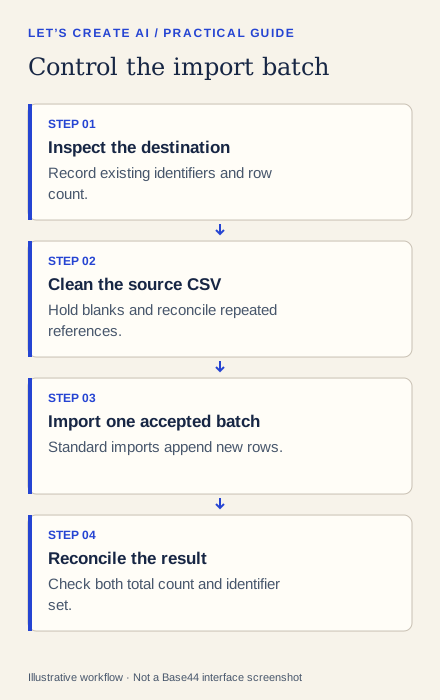
This tutorial prepares a small clean CSV, imports it once and checks the result. It does not promise an automatic duplicate-prevention feature or a built-in upsert. You prevent duplication by reconciling the file and destination before import, then stop if the counts do not match.
The file and results below are synthetic examples. The recipe is based on official documentation; we have not imported it into a paid Base44 account.
Before you start
Use an empty sample table in a separate app or an appropriate test-data environment. If the destination contains important records, export a copy and inspect them before making changes. Do not clear a live table simply to follow a tutorial.
Decide what uniquely identifies a property. A stable reference such as TEST-P001 is easier to reconcile than a free-text address. Write down the exact destination table and the number of rows already there.
1. Find the two errors in this sample
Create a local file named properties-review.csv using these fictional values:
property_reference,display_name,area
TEST-P001,Example House A,North
TEST-P002,Example House B,Central
TEST-P002,Example House B,Central
,Example House C,South
TEST-P003,Example House D,West
There are five input rows. One repeats TEST-P002; another has no property reference. The intended clean batch has three distinct records. Do not assign a new identifier to the blank row without knowing whether it represents another property or an incomplete copy of an existing one.
| Source row | Problem | Decision before import |
|---|---|---|
| TEST-P001 | None in this example | Keep |
| First TEST-P002 | None in this example | Keep |
| Second TEST-P002 | Duplicate identifier and same values | Remove the duplicate from the batch |
| Blank identifier | Cannot reconcile the property | Hold outside the import for review |
| TEST-P003 | None in this example | Keep |
Figure 2. The sample reconciliation table. Five input rows become three accepted rows plus one held record and one removed duplicate.
2. Normalize the file before mapping it
Trim accidental spaces from identifiers, keep the header names consistent and confirm that your spreadsheet has not reformatted references. Keep identifiers as text. If two rows share an identifier but disagree on the name or area, resolve the conflict with the data owner rather than arbitrarily selecting the last row.
Save the accepted rows as properties-clean.csv. Its contents should be:
property_reference,display_name,area
TEST-P001,Example House A,North
TEST-P002,Example House B,Central
TEST-P003,Example House D,West
Compare those identifiers with the destination table. If any already exist there, remove them from this append-only batch or plan a separate, deliberately tested update process. Do not assume an AI prompt changes the documented behavior of a standard import.
3. Choose the correct import route
The official Base44 data guide describes dashboard CSV imports and AI-assisted imports of structured files. For a CSV that matches an existing table, the dashboard route is the smaller operation: open Dashboard → Data, choose the table, then More actions → Import and select the file.
If you need help understanding a proposed mapping, ask for a review before execution:
Review this synthetic CSV for an existing Properties table.
Map property_reference, display_name and area to matching fields.
Report row count, blank references and repeated references.
Explain any schema change you propose.
Do not import, delete, clear or replace records yet.
Treat a later standard import as append-only, not as an upsert.
Inspect any proposed schema change carefully. A text identifier should not become a number, and an area column should not be mistaken for an access-control assignment.
4. Reconcile the imported batch
For an empty sample table, the expected result is three records with identifiers TEST-P001, TEST-P002 and TEST-P003. For a previously populated table, calculate expected total rows as its original count plus the accepted new rows.
Open the table and inspect every record in this small trial. Compare both the count and the identifier set; the correct count alone can hide one missing record and one duplicate. Save the accepted file, the destination name and the result in a brief import note.
If the count is wrong, stop before importing the next batch. Inspect the import response, rejected rows and the actual table. Re-importing the full file to “try again” can compound the problem.
Troubleshooting
- The second import doubled the records: the import appended rows. Identify the exact unwanted batch before correcting anything; avoid deleting legitimate records with the same label.
- A record appears missing: inspect rejected rows and field types, then retry only the reconciled missing rows.
- The headers created unexpected fields: review the schema and mapping in a sample table before another import.
- You need recurring synchronization: define a separate update-and-identity strategy. Repeated CSV upload is not automatically a synchronization mechanism.
Scale up only after the small batch reconciles. Keep an import log so another operator can tell which file was accepted and avoid accidentally uploading it again.