
A shared inbox can make routine maintenance requests difficult to follow. One person reads a message, another asks for a location, and nobody is sure whether it has been reviewed. This tutorial designs a small Base44 prototype that captures the required information and puts each request into a visible review queue.
Your result: a request can be entered, saved, reviewed and reopened with its status intact. This example is for administrative intake. It does not classify emergencies, dispatch contractors or replace the responsible team’s existing urgent-contact process.
This is a documentation-based build recipe with synthetic examples, not a report of an executed Base44 project.
Before you start
Use a separate app containing only sample records. Identify the staff member who submits requests and the reviewer who changes status. Check your intended access configuration before inviting anyone; use a suitable paid plan if you need Base44’s private app visibility. Do not treat an unshared URL as an access control.
You need three screens: a form, a queue and a record detail view. Keep the first version to these screens so a failed save or missing field is easy to diagnose.
1. Specify the fields and states
Use this small model as your own proposed specification:
| Field | Purpose | Example |
|---|---|---|
| property_reference | A stable identifier instead of a person’s name | TEST-P001 |
| location | The place the reviewer needs to identify | Shared hallway |
| description | The observed issue | Cupboard handle is loose |
| status | Where the request is in the administrative queue | New |
| reviewer_note | A short internal handoff note | Check details with the site team |
Require the first three fields. New requests should begin as New. Only the intended reviewer should set Reviewed or Closed; the submitter should not be able to bypass the review by changing a hidden form value.
2. Generate the form and queue
Start a new app and give Base44 this focused request:
Build a staff maintenance-intake prototype using synthetic data.
Create one MaintenanceRequest record type with property_reference,
location, description, status and reviewer_note.
Require the first three fields. Set status to New on creation.

Create New Request, Review Queue and Request Detail screens.
In the queue show the request ID, property, location and status.
The reviewer can change status to Reviewed or Closed.
Keep the request ID and submitted details visible in the detail view.

Show saving, successful save and useful error states.
Do not clear the form on a failed save or show success early.
No emails, contractor actions, payments or automated urgency rating.
State what access rules and plan features this design needs.
Base44’s first-build guide explains how to begin and refine an app. After generation, compare the proposed data model with your field list. If the builder adds a tenant directory or a contractor marketplace, remove it from this first version.
3. Test a complete saved-record journey
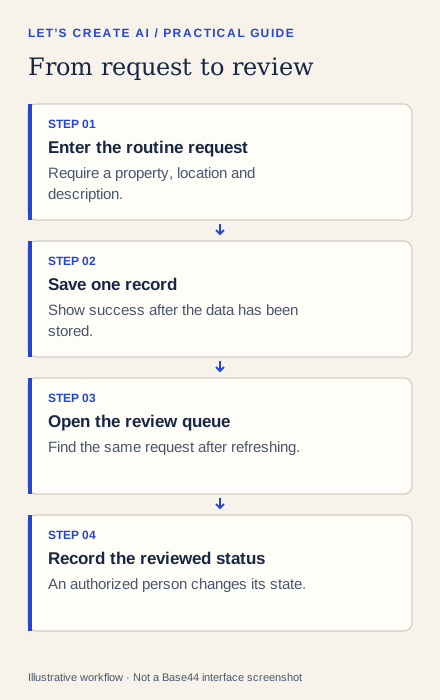
Create a request using the example values above. Write down its identifier, reload the queue and find it again. Open its detail view and compare every field. Then use an authorized reviewer account to set Reviewed, reload the page and confirm the saved status.
Inspect the record through Dashboard → Data as the app owner or collaborator. The platform’s data guide describes the data tables and editing tools. A correct screen should agree with the stored record; a discrepancy needs investigation before more features are added.
| Scenario | What to do | Expected result |
|---|---|---|
| Missing location | Submit with that field empty | An actionable error and no incomplete request |
| Normal request | Enter all required sample fields | One saved record |
| Repeated click | Press submit twice quickly | Inspect the actual record count; investigate duplicates |
| Refresh | Reload after changing status | The correct saved status remains |
| Long description | Enter several sentences | Readable wrapping without a broken mobile layout |
Figure 2. A practical test matrix. The results must be filled in from your own app.
4. Fix one failed behavior at a time
If saving fails, keep your follow-up narrow:
On New Request, the form clears after a failed save.
Change that behavior so entered values stay visible, the error
explains the failure, and success appears only after persistence.
Keep the data model and other screens unchanged.
Retest the failing case and one normal save. A fix to the form can accidentally change the queue or status behavior, so confirm that the same record can still be reopened.
5. Make the queue useful to its reviewer
Ask for a clear New view and an explicit way to include Reviewed and Closed items. The reviewer should see the property and location without opening every record. On a phone, use stacked cards or a responsive layout rather than an unreadably narrow table.
Keep reviewer notes internal. If you later add a submitter-facing status view, decide which fields it exposes and test its data permissions separately. Hiding a note in the interface alone is not a permission rule.
Troubleshooting
- A success message appears but no record exists: inspect the save operation and error handling. Use the stored data as the deciding evidence.
- The queue is empty: check the selected data environment, active filters and the current user’s permissions before creating more sample records.
- Everyone can change status: review authorization for the update action; do not solve this only by removing a button.
- A draft adds urgency claims: remove them and retain your actual human escalation process outside this routine-intake prototype.
The prototype is ready for its next stage when a reviewer can reproduce the complete journey with sample data and explain the remaining access limitations. Measure actual correction effort before claiming it saves the team time.