
A portal can show each owner the right cards and still expose the wrong records if its data rules are too broad. This tutorial designs a small read-only owner view and checks it with two sample users. The objective is clear: owner A can read their assigned records and cannot read owner B’s.
Start with synthetic data in a separate app. This is a documentation-based configuration recipe, not a security certification or a claim that we tested a real customer portal.
1. Separate three kinds of access
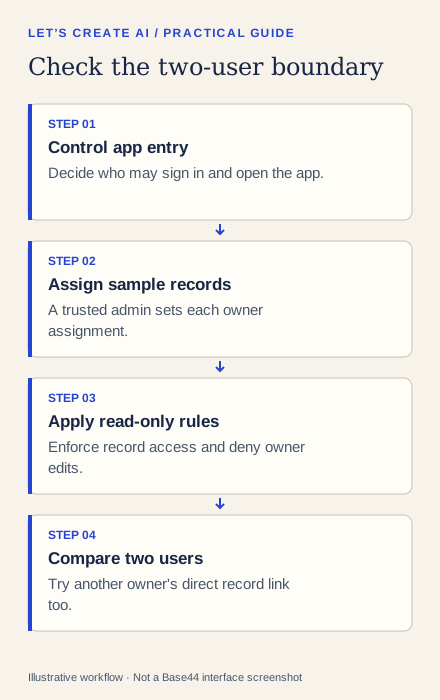
First decide who can open the app. Then decide which records those people can read or change. Finally decide who can edit the application itself.
Base44’s app-access guide distinguishes visibility, live-app roles and editor collaborators. Giving someone an app role is different from inviting them to maintain its editor. Private visibility also has plan requirements; confirm those before choosing it.
For our first portal, owners need read access to assigned property summaries. They do not need dashboard/editor access, the ability to reassign a property or permission to delete records.
2. Define a tiny access matrix
Use two sample users that you control. The values OWNER-A and OWNER-B below are labels, not email addresses to invite. Replace the account fields with your actual controlled test accounts when configuring the app.
| Actor | Read assigned record | Read another owner’s record | Create, update or delete properties |
|---|---|---|---|
| Owner A | Yes: TEST-P001 | No: TEST-P002 | No |
| Owner B | Yes: TEST-P002 | No: TEST-P001 | No |
| Trusted app administrator | Yes | Yes | Only the intended administrative actions |
| Signed-out visitor | No | No | No |
Figure 2. The intended permissions matrix. Fill in actual pass/fail observations during your test.
Ask for a Properties table with a stable property reference and a trusted owner_email assignment. Keep the assignment administrative: an ordinary owner must not be able to edit a record to assign themselves someone else’s property.
3. Ask Base44 for record-level rules
Create a read-only owner portal using synthetic property summaries.
Each Properties record has property_reference, display_name,
public_summary and owner_email.

A signed-in ordinary user may read a record only when owner_email
matches that authenticated user's email. Ordinary users cannot
create, update, delete or change owner_email.
Trusted app admins may manage the sample assignments.
Signed-out visitors must not read these records.

Enforce this in data permissions, not just page filtering.
Explain each Create, Read, Update and Delete rule before applying.
Keep owners out of the app editor and collaborator access.
The official data-permissions guide documents record-to-user field comparison and action-specific rules. Inspect the generated rules through Dashboard → Data → the table → Permissions. A comparison field must match the actual stored field name and authenticated account property.
Review every rule that grants Read. The guide explains that matching any permitted rule can grant access. A broad alternative rule can defeat an otherwise correct owner comparison.
4. Test as both users
Use Base44’s permission-testing preview to compare sample users, then verify the intended published-app path with controlled accounts before admitting real owners. Preview actions can write records, so stay within synthetic data.
As owner A, confirm TEST-P001 is visible. Attempt to open TEST-P002 using a direct detail link you recorded as the administrator. Then repeat the exercise as owner B. Check signed-out behavior in a separate browser session, rather than assume logging out of one tab changed every session.
Try the negative actions as well: record creation, reassignment, update and delete should be denied for the ordinary users. If you have a technical reviewer, ask them to verify the underlying data requests; a page that hides the edit button does not demonstrate authorization.
5. Keep the first owner view read-only
Do not add messages, files and maintenance details to the same first test. Each new record type and relationship needs its own access design. A protected Properties table does not automatically protect a separate Documents table linked to it.
If an owner needs to request a correction, provide an explicit separate process. Granting broad write access to solve a missing correction path creates a different problem.
Troubleshooting
- Both owners see everything: inspect broad read rules and the authenticated account actually selected in the test.
- Neither owner sees anything: check exact stored assignments and comparison fields before loosening the rule.
- Only the menu is hidden: verify record access directly; interface visibility is not enough.
- An owner can change assignments: remove their update permission and inspect any custom action that bypasses it.
Stop the rollout if the access matrix fails. Add real records only after an accountable reviewer has checked the relevant rules, negative tests and data scope.