
You can automate a small team’s job scheduling with a Google Sheet, one Google Calendar per crew and a short Apps Script. Record each job’s skill, service area, duration and time window. Let a dispatcher approve the row. The script then finds an eligible crew’s first available slot, reserves it and records the result. Jobs that cannot fit go to a review queue.
This guide includes the complete starter, sample files and a test sequence. You can build the free version without Base44, an AI subscription, a paid automation platform or contacting us. Later, we explain when an app builder or a custom system becomes useful.
The result: a dispatcher-controlled scheduler for routine daytime work, with a preview before publication. It is suitable for learning and a small supervised pilot. It does not calculate driving routes, monitor emergencies or automatically renegotiate customer appointments.
Verification note: the accompanying script passed local tests with simulated Google services. We have not authorized it in a live Google account or created real crew appointments. Complete the sandbox checks below before relying on it.
Your free starter kit
Use the download panel above to save these files before beginning:
- Complete scheduling script: the whole program, ready to paste into Apps Script.
- Sample jobs: four fictional jobs, including one deliberately impossible window.
- Sample crews: two crew records with calendar-ID placeholders.
- Setup and recovery checklist: a compact companion to this article.
You need a Google account with access to Sheets, Calendar and Apps Script, a desktop browser for setup and a phone for the crew-view test. Managed work or school accounts may restrict scripts or sharing; check with the account administrator if a step is unavailable.
Google’s current documentation describes standard Calendar API use as available at no additional cost, while flagging changing rules for excess-quota usage in 2026. This exercise needs no paid quota increase, billing upgrade, SMS service or Maps API. Check the current Calendar usage and pricing guidance before scaling it.
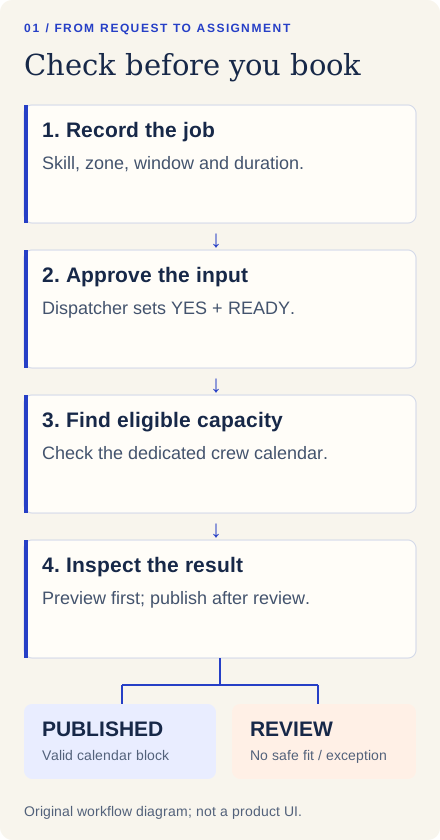
1. Define what a valid appointment means
Start with a rule your dispatcher can explain. In this example:
| Rule | Starter behavior |
|---|---|
| Working day | Monday–Friday, 08:00–17:00 in one configured time zone |
| Assignment | One crew for one job; the required skill and zone must match exactly |
| Time window | The service must start and finish inside the job’s window |
| Buffer | Reserve another 15 minutes after the service, within the crew’s shift |
| Approval | Only rows with Approved = YES and Status = READY are considered |
| Priority | Process rows from top to bottom; earlier rows get first access to capacity |
| No fit | Mark the job REVIEW; keep the remaining jobs available for a later run |
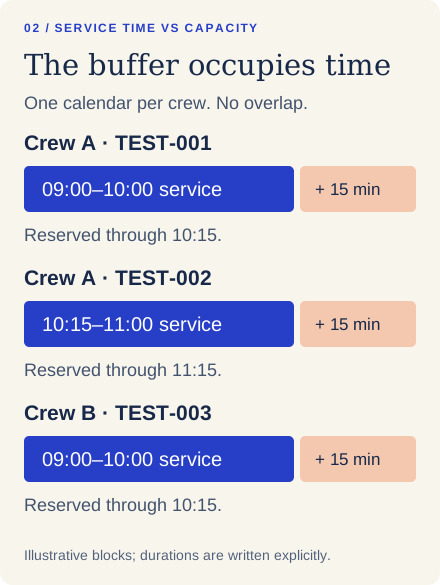
A 60-minute job that starts at 09:00 finishes at 10:00. Its calendar block ends at 10:15 because the buffer also consumes capacity. The next job cannot start at 10:00. A service ending at 17:00 is rejected because its buffer would extend beyond the shift.
The 15-minute buffer is a planning allowance, not an estimated journey. Use one small geographic zone and check actual travel manually. If two sites take 45 minutes to travel between, changing a label to the same zone does not make a 15-minute buffer adequate.
The algorithm searches in 15-minute increments, tries crews alphabetically and chooses the first feasible slot. It does not optimize the entire day’s route or balance everyone’s workload. Put a genuinely time-sensitive routine job above flexible jobs before approving the batch. Keep urgent or safety-critical dispatch outside this pilot.
2. Create two dedicated crew calendars
Use separate calendars created for this exercise. Do not connect a worker’s personal primary calendar or an existing customer-facing booking calendar.
- Open Google Calendar on your computer.
- Beside Other calendars, choose Add other calendars → Create new calendar.
- Create
TEST — Crew AandTEST — Crew B. - Open each calendar’s settings. Set its time zone to
Europe/Londonfor the sample, or the same IANA time zone you will use throughout your own build. - Under Integrate calendar, copy its Calendar ID. A dedicated secondary calendar normally has an ID ending in
@group.calendar.google.com; use the ID, not a public calendar URL. - Keep both calendars private while you build.
Google documents creating additional calendars and calendar-sharing permissions. The dispatcher account should own these test calendars. The script refuses primary calendar IDs and verifies write access and matching time zones.
Availability has a boundary: the script reads these dedicated calendars, not every worker’s personal calendars. Add holidays, leave, meetings, lunch and other unavailable time to the appropriate crew calendar. Use an all-day entry for a full-day absence. Any returned timed entry blocks capacity, including entries marked “free”; that conservative choice is intentional for this availability ledger.
For the first sample run, leave the sample morning empty. After that succeeds, add real break rules to the test calendars and repeat the conflict checks. Two people working as one inseparable team should be represented by one crew calendar. This starter does not assemble multi-person crews dynamically.
3. Install the complete script in a new spreadsheet
Create a blank Google Sheet called TEST — Field scheduling. In File → Settings, set its time zone to the zone chosen above. Keep this spreadsheet restricted to the dispatcher during the pilot.
- Choose Extensions → Apps Script from that spreadsheet.
- Open the downloaded
field-scheduler.gsin a text editor. Copy the entire file, replacing the starter contents ofCode.gsin Apps Script. - Save the project as
Field scheduling starter. - In the editor’s left panel, beside Services, click +. Add Google Calendar API, version v3, using the identifier
Calendar. - In Project Settings, set the project’s time zone to the same one used by the spreadsheet and calendars.
- Check the
CONFIGblock at the top of the code. ChangetimeZoneif necessary; leave the other defaults for the first test. - Select
setupSchedulerin the function selector and click Run. - Review Google’s authorization request for the script you just created. It needs spreadsheet and calendar access. Confirm the project and account are yours; do not authorize an unfamiliar project or add unrelated services.
- Return to the spreadsheet and reload it. You should see Jobs, Crews and a Field scheduler menu.
The Advanced Google services guide explains enabling the API. With Apps Script’s default Cloud project, enabling the service also handles the associated API setup. A project you separately linked to Google Cloud may require that API to be enabled there too. No web-app deployment or public endpoint is needed.
The default configuration is:
const CONFIG = Object.freeze({
  timeZone: 'Europe/London', shiftStart: '08:00', shiftEnd: '17:00',
  bufferMinutes: 15, slotMinutes: 15, maxJobsPerRun: 25, maxRows: 500,
  maxCrews: 8, maxRunMilliseconds: 240000
});
These batch and row caps are conservative limits of this example, not Google’s product limits. Leave the original file intact elsewhere so you can compare any changes you make later.
4. Load the sample crews and jobs
Import crews.csv into the Crews tab and jobs.csv into the Jobs tab, starting at cell A1. In Google Sheets, use File → Import → Upload, choose the relevant CSV and import into the selected sheet rather than replacing the whole workbook. Keep the tab names and header order exactly as provided.
Keep dates and times as plain text. If the import dialog offers Convert text to numbers, dates and formulas, turn it off. Otherwise format the input range as Plain text and enter or paste the displayed values so they remain exactly 2026-11-09 and 09:00. Check the values after import; a displayed 9:00 AM, locale-specific date or missing leading zero will be rejected.
Replace both Calendar ID placeholders in Crews with the IDs you copied:
| Crew | Skill | Zone | CalendarID | Active |
|---|---|---|---|---|
| Crew A | electrical | North | Your Crew A secondary Calendar ID | YES |
| Crew B | plumbing | North | Your Crew B secondary Calendar ID | YES |
Keep skills and zones consistent: North and north are different values in this starter. One crew row has one skill and one zone. Do not duplicate a calendar across rows to represent several skills. That needs a different data model.
The first eight Jobs columns describe the request:
| Column | What to enter |
|---|---|
| JobID | A permanent unique reference, such as TEST-001; never recycle it |
| ServiceDate | YYYY-MM-DD, on a future weekday |
| WindowStart / WindowEnd | Earliest service start and latest service finish, as HH:mm |
| Minutes | Whole-number service duration, 15–480 minutes |
| Skill / Zone | Exact labels matching a crew row |
| Summary | A short operational description, without customer secrets |
Columns I–J control publication: Approved, then Status. Only the exact pair YES / READY is eligible. Columns K–O are outputs: AssignedCrew, Start, End, CalendarEventId, Error. Do not type planned assignments into output columns.
The sample date is Monday, 9 November 2026. If that date has passed when you read this, change all four sample dates to the same future weekday before previewing. The script also refuses windows already entirely in the past.
5. Preview the schedule before creating events
Choose Field scheduler → 2. Preview approved jobs. You can also run previewSchedule directly in the script editor.
Preview reads crew calendars and writes a Preview tab. It does not create calendar events or change the Jobs rows. Its proposed allocations reserve capacity within that preview, so the second job cannot reuse the first job’s slot.
With empty test calendars, the supplied sample produces this pattern:
| Job | Result | Crew | Service start | Service end | Calendar block ends |
|---|---|---|---|---|---|
| TEST-001 | PROPOSED | Crew A | 09:00 | 10:00 | 10:15 |
| TEST-002 | PROPOSED | Crew A | 10:15 | 11:00 | 11:15 |
| TEST-003 | PROPOSED | Crew B | 09:00 | 10:00 | 10:15 |
| TEST-004 | REVIEW | None | — | — | — |
The fourth job requires 90 minutes inside a 09:00–10:00 window. It cannot fit even on an empty calendar. REVIEW is the correct result. The script should not squeeze it in, shorten its service time or assign the wrong trade.
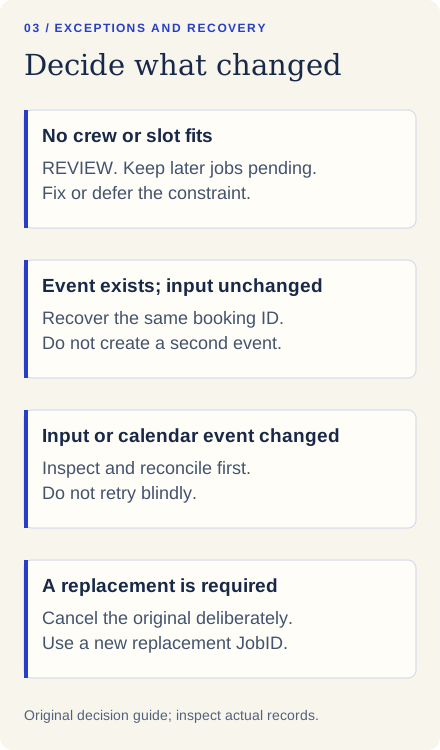
If an exception occurs, the batch stops at that row. Later READY jobs remain available. Correct or explicitly defer the reviewed job, then preview again. Preview is a proposal at the time you ran it; calendars can change before publication.
6. Publish the first three sample appointments
Read the Preview tab before continuing. Then choose Field scheduler → 3. Publish approved jobs.
The script rechecks availability immediately before each new event. For valid assignments, it creates the block on the selected calendar and records PUBLISHED, the crew, service start/end and a Calendar event ID in Jobs. The impossible fourth job becomes REVIEW with an explanation.
Open both calendars and verify:
- Crew A has exactly two job blocks; Crew B has exactly one.
- Each event title starts with the matching JobID.
- The first service’s sheet End is 10:00, while its calendar block ends at 10:15.
- Each event uses the expected local time, including on your phone.
- TEST-004 has no calendar event.
Run publication a second time. Already PUBLISHED rows are skipped. You should still see three events, not six.
The starter also derives a repeatable event ID from the spreadsheet ID and JobID, using the Calendar API’s event creation fields. On a retry it checks every configured crew calendar for that ID before creating anything. If an event was created but the row update failed, the same unchanged job can be recovered. A changed input or manually moved event is held for review instead of silently creating another appointment.
Keep the crew rows, calendar IDs, JobIDs and script configuration stable during the pilot. Deactivate a crew with Active = NO rather than deleting its row: the recovery check still needs its calendar. Do not run several copies of the spreadsheet against the same live calendars. Each copy has a different spreadsheet ID and therefore different booking IDs.
7. Give crews a usable mobile view
After the private test passes, share each test crew calendar only with that crew’s test user, using permission to see event details. Keep write access with the dispatcher. Have the user accept the calendar-sharing invitation, open Google Calendar on their phone and enable that calendar in the visible calendar list.
Confirm that the crew can read its own three essentials: JobID, local start time and the service/buffer description. It should not see the other crew’s private calendar unless you intentionally share it. Do not publish customer addresses, entry codes or personal details in the demonstration events.
A visible calendar entry is not proof someone received or acknowledged a notification. Google’s reminder model states that reminder settings belong to the user. The script adds a popup reminder to its event, but that does not configure every crew member’s phone. Each user must check their own Calendar and device notification settings and test a reminder. Use a manual “schedule checked” confirmation during the pilot.
This version sends no customer invitations, emails, texts or SMS. It adds no attendees and requests no event-update emails. Keep customer appointment confirmation in your existing manual process until you have designed and tested a separate communication flow.
8. Run these checks before adding a timer
Use the test calendars and a small batch. Record your actual observations rather than assuming a green script execution means the schedule is right.
| Check | What to do | Pass condition |
|---|---|---|
| Approval gate | Add a fresh job with Approved = NO | Neither preview nor publication assigns it |
| Busy slot | Add a manual 09:00–10:00 block to Crew A | An eligible new job starts after that block or goes to REVIEW |
| Full-day absence | Add an all-day absence to Crew A | No new electrical job is assigned to Crew A that day |
| Skill mismatch | Request roofing with no roofing crew |
REVIEW; no event |
| Impossible window | Use the supplied 90-minute job in a 60-minute window | REVIEW; no event |
| Shift boundary | Request 16:00–17:00 for 60 minutes | REVIEW because the buffer cannot fit |
| Duplicate reference | Duplicate a JobID in the sheet | Whole run stops before creating events |
| Retry recovery | For an unchanged published test row, set only Status back to READY and rerun | Same existing event recovered; no additional event |
| Wrong time zone | On a test calendar, deliberately choose a different zone | Run stops with a mismatch message |
| Mobile visibility | Open the assigned test calendar as the crew user | Correct local time and only intentionally shared information |
Restore test changes after each check. For the recovery check, do not alter the job input or move its event. For a new scenario, use a fresh JobID. Avoid testing by deliberately disrupting your network during a real booking; the starter’s interrupted-write behavior was exercised locally with simulated API responses.
9. Add unattended runs only after the sandbox passes
For a supervised first pilot, a dispatcher can preview and publish manually each morning. That is already useful automation: the code selects slots and writes the appointments.
To process newly approved rows during the day:
- In Apps Script, open Triggers using the clock icon.
- Add one trigger for
publishApprovedJobs. - Choose Time-driven → Minutes timer → Every 15 minutes.
- Save, then add a single fresh fictional READY / YES job and observe one scheduled run.
- Verify the row and calendar event; wait for another run and check that no duplicate appears.
An installable trigger executes using the account that created it. Use the dispatcher account and keep it available. The interval is polling, not a guaranteed exact dispatch time. Changing a job at 10:01 does not promise a 10:01 appointment notification.
The script handles at most 25 approved READY jobs per run and stops attempting new rows after its four-minute soft time budget. Extra rows remain READY for another run. A slow API call can still consume time beyond that check. Google’s current Apps Script quotas include a six-minute execution limit and, for consumer accounts, 90 minutes of total trigger runtime per day. These are changing service limits, not capacity guarantees. Inspect Executions and keep batches small; do not treat a larger paid quota as a substitute for efficient processing.
If you no longer need automatic runs, delete this project’s trigger. The script does not install one by itself.
10. Handle changes without losing control of the schedule
Keep one dispatcher and one script project responsible for publishing. The script uses a lock to prevent overlapping runs of that project and rechecks a chosen slot. Google Calendar does not make “read free time, then insert event” a single atomic booking transaction. Another editor or system can still create a conflict in between. Restrict calendar writers and reconcile manual changes before the next batch.
For an unscheduled job: edit its inputs, inspect the Error, then deliberately set Approved = YES and Status = READY after review. If the previous failure may have created an event, inspect the calendars before changing inputs. Retry the unchanged job first so recovery can find it.
For a published cancellation: remove or cancel the corresponding test calendar block, mark the sheet row CANCELLED and retain its JobID and event ID. Do not set it back to READY. This starter does not automatically delete events because someone changes a cell.
For a published reschedule: inspect and remove the old appointment as appropriate, mark the original row CANCELLED, and create a replacement with a new JobID, such as TEST-001-R1. Record the relationship in your dispatch notes. Preview and approve the replacement. Editing a PUBLISHED row does not move its event.
For a late-running crew: review the downstream jobs manually. Move only appointments you have reconciled with affected people. Automatic cascading changes, overtime and customer messages belong in a more complete scheduling design.
For daily housekeeping, filter Jobs by REVIEW and READY, inspect script Executions, check today’s calendars and keep a dated private copy of the spreadsheet. Preview is the latest run’s output, not a permanent audit log. Retain your change notes separately. Only archive old rows after preserving their references, and never reuse a JobID.
11. Troubleshooting the free build
| Symptom | Check first | Next action |
|---|---|---|
Calendar is not defined |
Was the Advanced Google Calendar service added with identifier Calendar? |
Enable that service, save and rerun preview |
| Calendar access error | Did you paste the Calendar ID, and is the dispatcher its owner or writer? | Fix access or the ID; do not replace an error with an empty calendar |
| Header or date error | Exact header order; plain-text ISO dates; 24-hour times | Restore the supplied schema and correct the displayed value |
| No job is processed | Approved/Status spelling and existing PUBLISHED states | Use YES / READY only for deliberately approved new or retried work |
| A job goes to REVIEW | Error column, required skill, zone, window and all calendar blocks | Correct the real constraint; do not force a crew assignment into outputs |
| Only part of a batch ran | First REVIEW row, 25-job cap and execution history | Resolve/defer the exception and rerun; later READY rows were retained |
| Appointment appears an hour off | Spreadsheet, project, CONFIG, calendar and phone display zones | Align the zones and repeat the sandbox; do not compensate by editing job times blindly |
| Event exists but row says REVIEW | A create may have succeeded before a later failure | Inspect the existing event, leave input unchanged and use the recovery check |
| API reports a quota or temporary failure | Executions and account/project limits | Stop repeated manual clicks, wait according to the provider guidance and investigate before retrying |
| Phone shows nothing | Calendar subscription/visibility and user’s notification settings | Open the shared calendar as that user; test visibility separately from reminders |
If you cannot establish what happened, stop the trigger and inspect the specific job and event. The starter intentionally exposes exceptions rather than making an undocumented booking decision.
12. Decide whether the free version is enough
Keep the free build if a dispatcher can understand its rules, maintain the availability calendars and resolve the small number of exceptions. You do not need an AI model to apply deterministic skill and time-window rules.
Consider a fuller system when your requirements include several skills per worker, different daily shifts, linked assets, real travel estimates, customer self-booking, automatic rescheduling, offline access, permissions per record, reliable delivery acknowledgements or an audit trail. These are changes to the scheduling model and operating process, not just a prettier calendar.
| Need | Sensible next step |
|---|---|
| A few supervised crews in compact zones | Keep the free spreadsheet/calendar pilot and improve its operating rules |
| A clearer dispatcher dashboard or worker forms | Prototype an app interface, then test its permissions and scheduling behavior |
| Route planning, complex constraints or several connected systems | Define the constraints and compare a specialist field-service product with a custom solution |
| Reliable unattended operations | Specify monitoring, retry/recovery, access control and support responsibilities before expanding |
Where Base44 can help
Base44 is an AI app builder that can be used to prototype a job board, crew availability screens and role-based views. Its official catalog lists a Google Calendar connector. A connector is an integration component, not proof that an app correctly prevents double bookings or respects each worker’s access boundary.
Base44’s current Workflows documentation places workflow creation and execution on Builder and higher plans. Runs use integration credits according to the steps and services involved. Check the requirements and credit behavior in your own workspace before buying. Do not assume the free app-building tier includes the unattended scheduling you need.
Start with a contained design request such as this:
Create a field-job scheduling prototype using fictional records.
Entities: Jobs, Crews, Availability, Assignments and ChangeLog.
A dispatcher reviews every assignment before publication.
Workers can read only assignments explicitly allocated to them.
Record skill, zone, duration, window, reserved buffer and time zone.
Keep unschedulable jobs in a visible review queue with reasons.
Do not connect real calendars, send messages or change existing bookings yet.
Show the scheduling rules, access rules and plan requirements for review.
Before connecting Google, test two different worker accounts, a duplicate request, a calendar conflict and a cancelled appointment. Keep the same acceptance criteria you established in the free pilot. Choose one scheduling system as the source of truth; do not leave both prototypes writing independently to the same crew calendars.
When to involve Let’s Create AI
Bring a working example and the exceptions it cannot handle. For example: “We need two qualified people and one vehicle for some jobs, the day changes when a visit overruns, and our customer system must receive the approved schedule.” That gives us a useful engineering problem to scope.
Let’s Create AI offers custom agents, tools and automation shaped around your workflow. A possible engagement could extend scheduling rules, connect existing systems, implement permission boundaries and add operational monitoring. Exact deliverables, support and third-party integrations are agreed for the project; this article is not a claim that a packaged field-service product is already available.
You can explore our approach to field service automation or describe the workflow you need help with. Customer-hosted and assisted deployment are supported where appropriate. Standard bespoke delivery is licensed deployable software; complete source delivery is separately negotiated. Required external AI-model, API and subscription costs are paid by the customer separately from development fees. An AI service is optional if ordinary scheduling rules solve the problem.
Your first useful milestone
Finish with a small result you can inspect: three correct fictional appointments, one correctly rejected job, no duplicate events on a retry and a crew member who can see the right calendar on their phone. Run that test before adding more software. Your next purchase, if you need one, should solve a gap you have observed in the pilot.